Viewers
BI specialist
Administration
Introduction
In DataOwn you use the SQL editor to write queries with which you explore and transform your data. The SQL editor provides a powerful environment where you can export queries directly, but also test them on your loaded data before promoting them to reusable data models. This guide gives some tips but assumes that you are proficient in SQL. Otherwise, there are plenty of (free) courses online and offline. The SQL dialect used is PostgreSQL.
The SQL editor is your workspace for exploring and answering ad-hoc questions. You can immediately export the data to CSV or Excel.
It is also the place to experiment and validate for new models. When you are satisfied with your query, you can promote it to a DBT model that becomes available in Lightdash for creating visualizations and dashboards.
The SQL editor interface
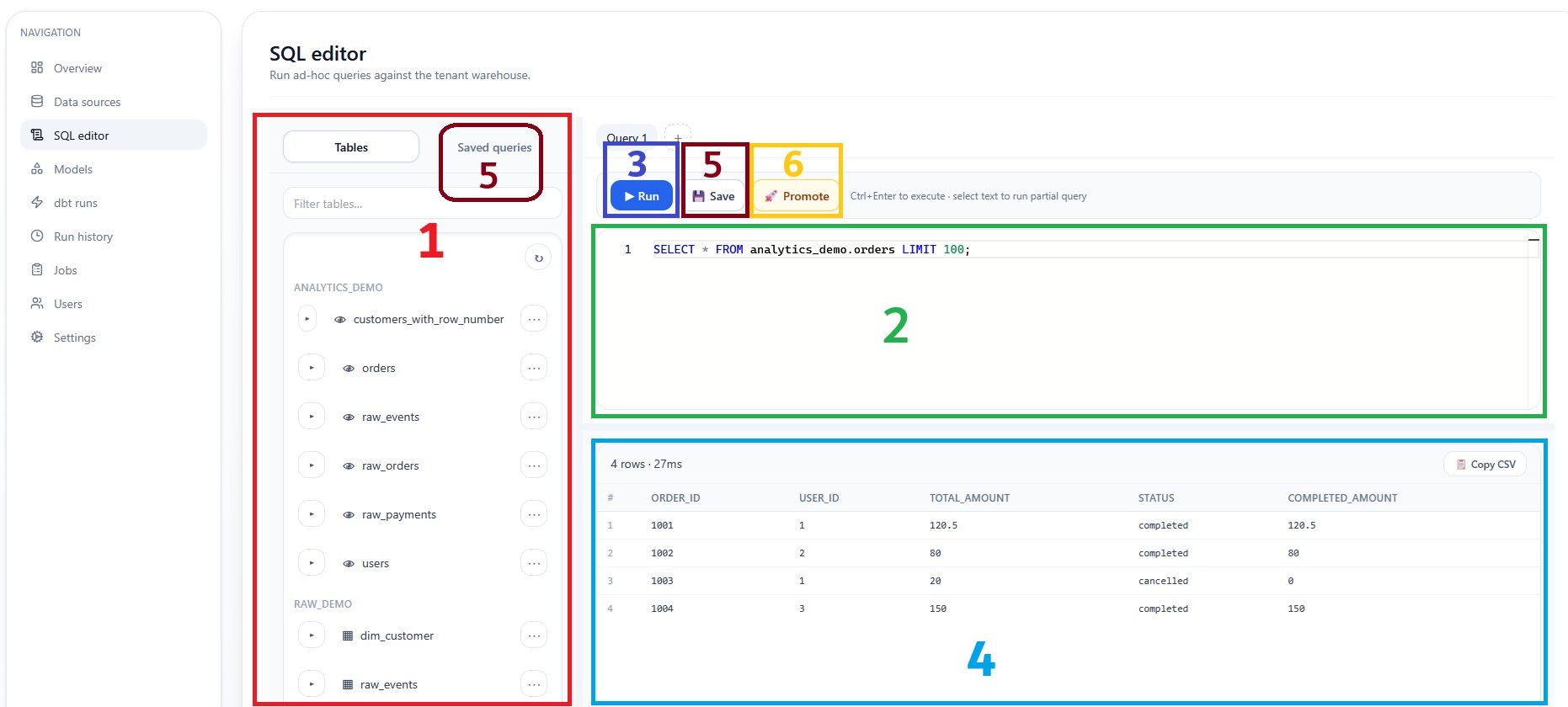
The SQL editor is divided into different sections that help you write and test queries:
- Schema browser - On the left you see all available tables and columns
- Code editor - In the middle you write your SQL with syntax highlighting
- Execute query - At the top you can execute your query
- Results - At the bottom you see the output of your query in table form
- Saved queries - Top right you find your saved queries
- Promote button - Bottom right you can promote your query to a DBT model
Schema browser
In the menu on the left you see all available tables and views, and the associated columns. The views under analytics_{company_name} are the result of the DBT models but can also be used further. The tables under raw_{company_name} are the information as it was loaded from the source.
By clicking on the arrow next to the table or view name you can see the columns and the datatype of those columns. By clicking on the menu (three dots) you can add a "select" query of that table to the editor.
Code editor and execute query
Here you can write SQL, helped by syntax highlighting. For example, keywords like SELECT and FROM are blue by default. The chosen SQL dialect is PostgreSQL. It is only possible to select data and not to modify tables or views from here. Optionally, you can work on multiple queries at the same time by adding multiple tabs above the run, save and promote buttons. It is not yet possible to use temporary tables.
Queries can be executed by clicking the run button or by pressing Ctrl+Enter. It is wise to end queries as much as possible with "LIMIT 100", so that only the top 100 rows are retrieved. In addition, start your queries simple and gradually build up the complexity.
Results
After executing the query, the results - or the error message - appear here. Here you can assess whether the query does what it should do, or what the content of the tables is.
For answering ad-hoc questions, sometimes the results of an SQL query are already enough. In that case you can copy the results with the "Copy CSV" button. If you save them in a notepad file as ".csv" you have a CSV file. If you paste them into a spreadsheet program, you can have them converted to a suitable format by choosing the comma as the separator. LibreOffice Calc asks this directly when pasting, in MS Excel you go to "Data" and then "Text to columns".
Saved queries
One of the most important features of the SQL editor is the ability to save queries. This makes your work reusable and shareable with colleagues. It also provides documentation because you can give a name and description.
If you want to save a query, choose save at the top. You can find the already saved queries in the left sidebar, if you choose "Saved queries" instead of "Tables". In addition to the name and description, you also see who saved it last and when the query was last run. Just like with the tables, you can also search your queries here. Load replaces the current screen with the saved query. Via the menu (dots) you can delete a saved query.
You can make the left sidebar wider to ensure that long descriptions do not take up too many lines.
Promoting to DBT models
If your SQL query works well and you want to create charts and dashboards with it, you can promote it to a DBT model. This is the crucial step that converts your query into a reusable data model that becomes available in Lightdash.
You do this by clicking on "Promote". Then you choose a model name and then "Create model". Then you go to the Models page to further shape your model: this is explained in Step 3: Creating models, where you learn how to further configure this model with metrics, dimensions and joins.
Check if your SQL works correctly
Before saving or promoting a query to a model, it is important to validate that it works correctly:
- Run your query - Execute it and check if the results are correct
- Check datatypes - Ensure columns have the correct datatype
- Verify counts - Check if the number of rows matches your expectation
- Test edge cases - See how your query handles NULL values or empty results
- Use LIMIT during development - Add 'LIMIT 100' for faster test results
Best practices
Use clear names
Choose recognizable aliases (e.g. 'order_date' instead of 'dt')
Add comments
Explain complex logic with SQL comments (-- or /* */). This also applies to the (functional) reasons behind choices.
Test with LIMIT
Use LIMIT during development for faster results and less system load.
Build incrementally
Start with basic queries via a table and add complexity step by step.
Use CTEs for readability
Break complex queries into logical steps. You write a CTE with a WITH cte_name AS () statement and can then call it as if it were a table.
Format your SQL
Use consistent indentation and line breaks. Most commonly used is a new line for each new field, new join or new criterion. You place the SELECT, FROM and WHERE completely to the left, the lines in between you indent by one tab.
Save intermediate steps
Save your query regularly during development. If you go to another screen you will otherwise lose your results.
Take a relevant sample
If you do not add an ORDER BY statement, the results are sorted in a non-predictable but also non-random way. This means that it regularly occurs that the first rows have a certain field filled, but the rows below do not. Test for example with all cases where the ID ends in 111, or in another way so that you do get a random sample.
Common problems
Query takes too long
Add filters to retrieve less data, use LIMIT during testing, or check if your JOIN conditions are efficient.
Syntax errors
Check for typos, missing commas, or unclosed parentheses. The error message often indicates the line where it went wrong.
Wrong results
Verify your JOIN conditions and WHERE clauses. Test each step separately by using CTEs.
NULL values
Use COALESCE() to replace NULL values, or CASE statements to handle them.
Duplicate rows
Check if your JOIN creates duplicates, often you need to filter further in one of the tables. Try to find the root cause, and do not just apply a DISTINCT or GROUP BY.